- Home
- Solutions
Catch WordPress Issues Before They Become Emergencies.
All DashAI unifies WordPress system diagnostics and log monitoring in wp-admin — with AI that turns raw errors into plain-language next steps, optional weekly executive summaries, and a Knowledge Center for project links — so teams troubleshoot faster with less tool-hopping.
- Built for Real Agency Workflows
All DashAI is built around how WordPress agencies actually work: tight timelines, unclear errors, and everyone asking “is the site OK?”
Your team reviews system posture and log signals inside wp-admin — fewer mystery tickets and less back-and-forth before you know what to fix.
Screens are meant for daily use: quick to open, easy to scan, and consistent so developers and leads share the same operational picture.
- Health, Logs, and Context — Without Leaving WordPress
One workspace for system diagnostics, WordPress logs, optional AI explanations, weekly email summaries, and a Knowledge Center for links and project notes — all in the admin you already use.
You get a single place for visibility and next steps: what changed, what’s risky, and what to do about it.
From debugging and maintenance to client-ready updates, All DashAI keeps the operational story in one place so teams stay organized as they scale.
Powerful AI-Assisted Monitoring Inside Your WordPress Admin
- Instant WordPress System Visibility
Get a structured view of WordPress, PHP, database, plugins, and security signals in one admin workspace — ideal before updates, migrations, or client check-ins.
When AI is enabled with your OpenAI key, technical posture turns into clearer priorities so teams troubleshoot faster and plan maintenance with more confidence.
- Logs & Debug Insights
Capture and review WordPress errors and warnings in a searchable log view inside wp-admin — without hunting through server files or scattered tools.
Use AI to translate noisy stack traces into plain-language context and next steps, so agencies resolve incidents sooner and communicate status with less guesswork.
- Knowledge Center
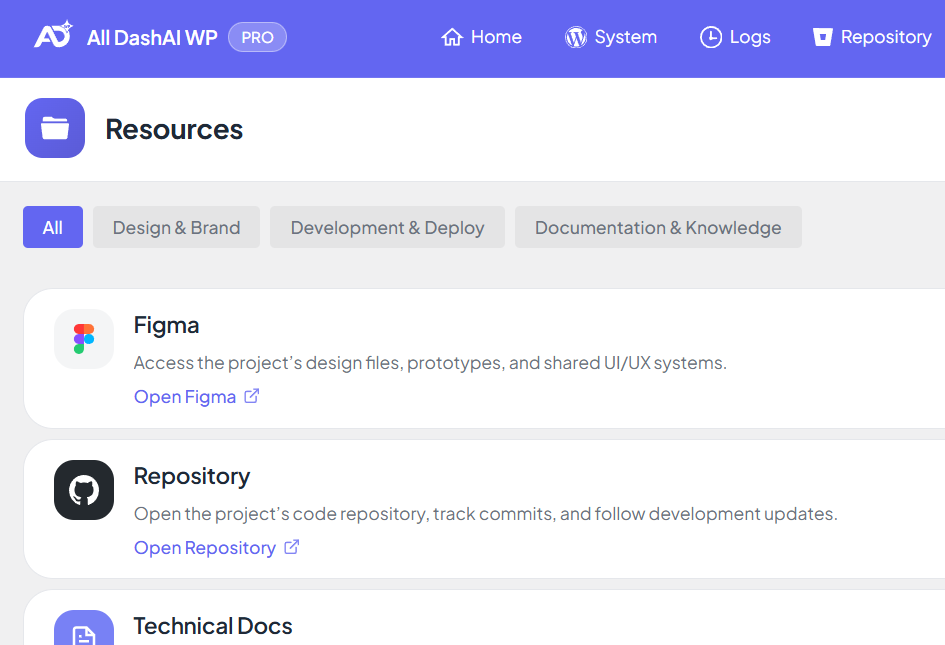
Centralize the links, environments, and notes your team relies on — staging URLs, docs, and operational context — in one organized place within WordPress.
Instead of chasing details across chat threads and inboxes, everyone works from the same on-site reference, which speeds onboarding and keeps handoffs cleaner.
- Weekly Monitoring Reports
Automate a weekly executive-style summary built from system health and log activity — delivered on a predictable cadence so stakeholders stay informed.
Configure recipients in settings and validate delivery when needed, reducing manual “site status” updates while keeping maintenance visibility professional.
- Shareable System Reports
Export polished system health views for sharing with clients or internal leads — a faster path from diagnostics to a presentable artifact.
Pair exports with your weekly summaries so operational work is easier to document, review, and hand off without rebuilding context from scratch.
- AI in Your Team’s Language
Choose the output language for AI-generated insights across System Health, Logs, and monitoring summaries — so explanations match how your team and clients actually work, not only English defaults.
It keeps narratives consistent from diagnosis to reporting: the same underlying signals, presented in one selected language across workflows, which reduces translation overhead and makes stakeholder updates easier to reuse.
Benefits That Turn WordPress Noise Into Clear Next Steps
All DashAI helps teams reduce guesswork by unifying system diagnostics and log monitoring inside WordPress — with optional AI explanations when you connect your OpenAI key, weekly summaries for stakeholders, and a Knowledge Center for the links and context your crew already uses. Instead of chasing symptoms across tools, you catch issues earlier, communicate status with confidence, and ship steadier work across every site you maintain.