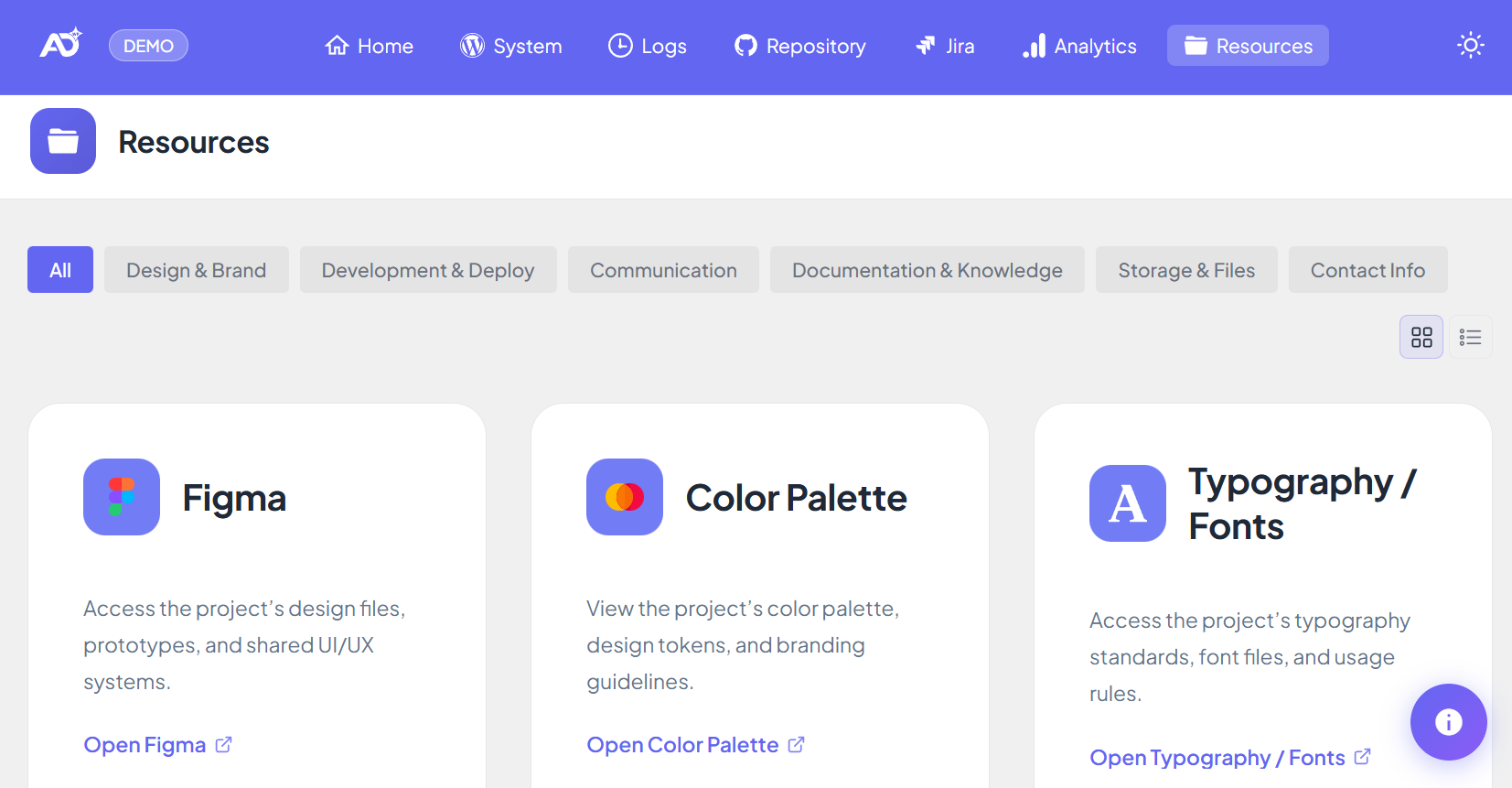
Resources Page

The Resources page centralizes all external links, project documentation, design assets, communication channels, development tools, file storage locations, environments, and team contacts into a single, structured dashboard. It gives agencies and teams a unified place to find every important resource related to the website or project—without needing to search across Slack channels, emails, or old documents.

This page is fully optional and can be enabled or disabled in Settings → Resources.


Enabling the Resources Page

To activate the page:

  1. Go to All DashAI WP → Settings → Resources

  2. Enable Resources Page

  3. Fill out the resource fields you want to expose

  4. Click Save Changes

A new Resources tab will appear in the plugin navigation menu.

Once enabled, the page becomes available to all users who have access to the plugin dashboard.


Overview of the Resources Dashboard

The Resources page is divided into clear sections:

  • Design & Brand

  • Development & Deploy

  • Communication

  • Documentation & Knowledge

  • Storage & Files

  • Environments

  • Contact Info

Each section displays its resources as clean, clickable cards, or as a compact list, depending on the selected view mode.

Resources support auto-detected icons (GitHub, Jira, Slack, Figma, OneDrive, Dropbox, Drive, and more) for instant visual recognition.


View Modes

The page provides two visualization modes, and you can switch between them at any time:

Grid View (default)

Displays all resources in modern cards with icons, names, and descriptions.
Ideal for visual browsing.

List View

Displays links in a compact vertical layout.
Useful for teams who prefer quick scanning.

The selected mode is remembered and applied automatically on the next visit.


Design & Brand Resources

This section centralizes design-related assets:

  • Figma URL
    A link to your project’s design files, prototypes, user flows, or system UI.

  • Color Palette URL
    A URL pointing to brand color guidelines, design tokens, or palette documentation.

  • Typography / Fonts URL
    Used to store links to font guidelines or downloadable font files.

All fields are optional. If filled, each appears as a clickable card.


Development & Deploy Resources

Resources to help engineering teams quickly access core development assets:

  • Repository URL (optional)
    A general link to your GitHub or Bitbucket repository (separate from the Repository integration settings).

  • Technical Documentation URL
    Developer docs, API documentation, readme collections, or architecture diagrams.

  • Cypress Dashboard URL
    Direct link to your project’s Cypress Dashboard if end-to-end testing is used.


Communication Resources

This section provides fast access to communication platforms:

  • Slack URL
    Links to your Slack workspace or project channel.

  • Teams URL
    Links to your Microsoft Teams environment or specific project channel.

Displayed with recognizable platform icons.


Documentation & Knowledge Resources

Organizes documentation hubs:

  • Jira URL

  • Confluence URL

  • Notion Workspace URL

  • Google Docs URL

Useful for storing wikis, specs, reports, and internal knowledge bases.


Storage & Files Resources

To quickly access shared files or large assets:

  • Dropbox URL

  • Google Drive URL

  • OneDrive URL

Perfect for clients using cloud storage for deliverables, archives, or datasets.


Custom Resources

Every section supports adding custom resources.

To add a custom resource:

  1. Click Add Resource under any section

  2. Set the name and URL

  3. Click Save Changes

Custom resources receive a generic link icon unless a known provider is detected.

To remove one, click Remove and save.


Environments

The Resources page includes a dedicated section for all project environments.

Common entries include:

  • Production

  • Staging

  • QA

  • Development

  • Preview / Review Apps

  • Custom environments

To add an environment:

  1. Click Add Environment

  2. Enter name and URL

  3. Save Changes

Environments always appear in their own category at the bottom of the dashboard.


Contact Info

This section makes it easy to store and display key project personnel.

Default Roles (always available)

  • Site Owner

  • Project Manager

  • Technical Lead

Each role includes:

  • Name

  • Email address

Custom Contacts

You may add unlimited contacts, such as:

  • Designers

  • Copywriters

  • QA testers

  • Account managers

  • DevOps engineers

Each contact must include:

  • Name

  • Role

  • Email

Contacts appear in structured, elegant cards.


Icon Detection

The plugin automatically detects service providers based on URLs and assigns the correct icon.

Supported examples:

  • GitHub

  • Bitbucket

  • Slack

  • Teams

  • Jira

  • Confluence

  • Figma

  • Dropbox

  • Google Drive

  • OneDrive

  • Google Docs

  • Notion

  • Cypress

Unknown or custom URLs use a generic link icon.


Storage and Security

  • Resources are stored in WordPress using safe, isolated option keys.

  • Data is sanitized on input and escaped on output.

  • All AJAX endpoints require capability checks and nonce validation.

  • No tracking or telemetry is used.

  • All links open in new tabs with noopener noreferrer for security.