
Analytics
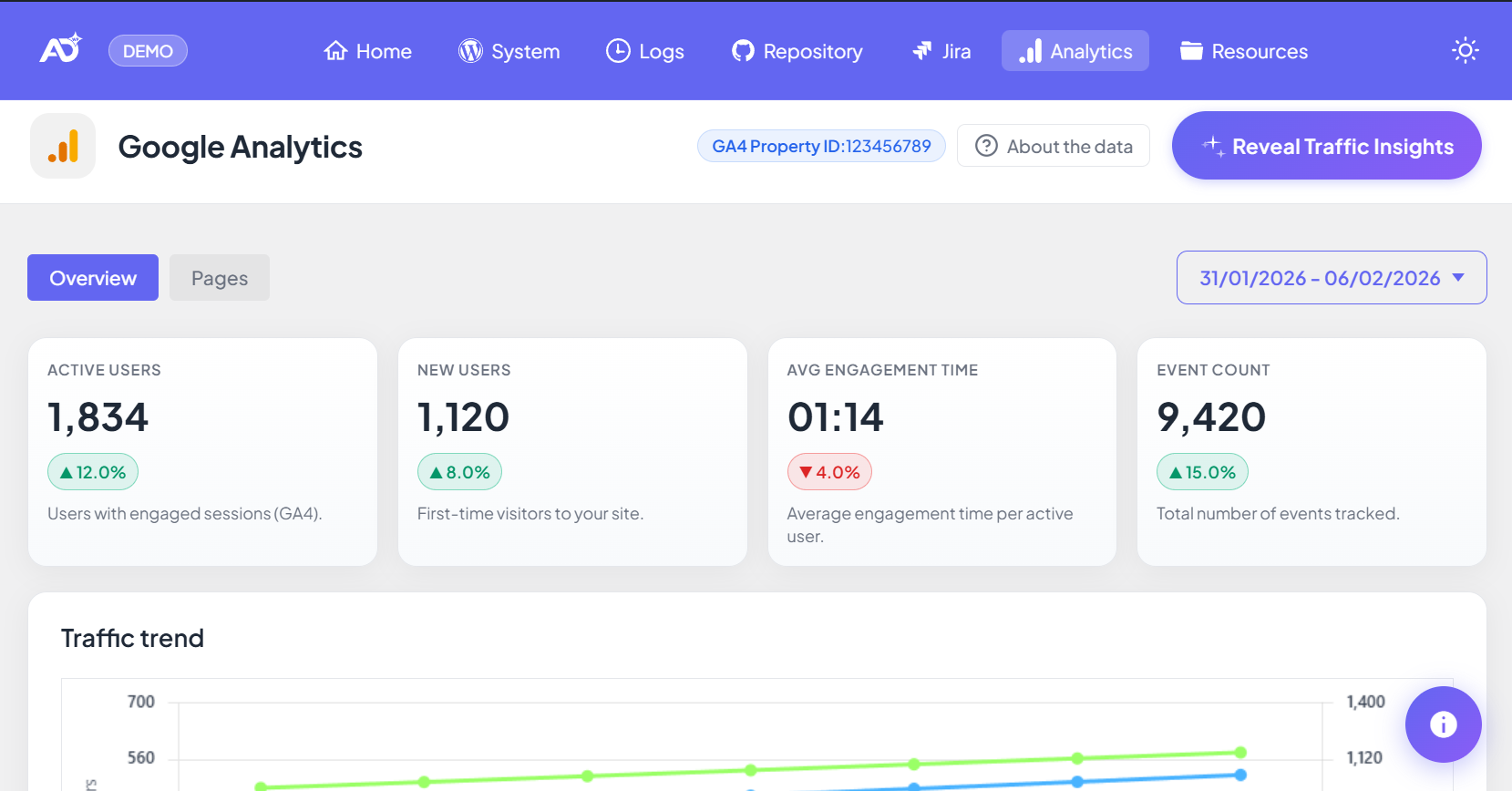
The Analytics (GA4) module brings traffic signals, performance trends, and AI-powered insights into wp-admin — with a
read-only connection to your Google Analytics 4 property.
Read-only
Decision-ready
Overview
Analytics (GA4) gives you a fast “pulse check” of site performance inside WordPress — ideal for weekly reviews, client reporting,
and spotting sudden drops or channel shifts early.

What the Analytics page does
1) Shows performance signals without leaving WordPress
Instead of jumping between GA4 and wp-admin, Analytics helps you quickly answer:
- Is traffic going up or down?
- Which channels and pages are performing?
- Are there warning signals (drops, spikes, traffic shifts)?
- What should we test or optimize next?
2) Enables recurring performance monitoring
The view is optimized for operational usage — focusing on what changed and what matters most.
- Quick client reporting
- Early anomaly detection
3) Generates AI-powered recommendations (optional)
When AI is enabled, All DashAI turns GA4 metrics into:
- Executive summaries (what changed, why it matters)
- Key trends and outliers
- Practical optimization and testing ideas
Prerequisites
- A Google account with access to a GA4 property.
- A GA4 property already created and collecting data.
- OAuth enabled/available in All DashAI (Google connection flow).
How to connect Google Analytics (GA4)
- Go to All DashAI → Settings → Analytics.
- Enable Google Analytics Integration.
- Click Connect with Google and authorize access.
- Select the correct GA4 Property (or Property ID).
- Click Save.
How Analytics works
All DashAI uses Google’s OAuth flow to securely retrieve GA4 reporting data, then normalizes it into dashboard-friendly panels.
OAuth authorization
- User grants access via Google consent screen.
- Access/refresh tokens are issued.
- Tokens are stored locally (encrypted) for ongoing access.
Data fetching
- All DashAI queries GA4 reporting endpoints for metrics and dimensions.
- Results are normalized and rendered inside wp-admin.
AI insights and summaries
With AI enabled (Settings → AI), Analytics becomes decision-ready.
- Executive-style summaries
- Trend detection (growth, decline, anomalies)
- Channel and page performance highlights
- 1–2 actionable optimization suggestions
Why this matters for agencies
- Reduces time spent in external dashboards
- Simplifies weekly/monthly reporting
- Improves client communication with clear summaries
- Connects code changes (Repository) to business impact (Analytics)
Best practices
- Always confirm the selected GA4 property for the site.
- Use read-only roles whenever possible (Viewer/Analyst).
- Reconnect OAuth if a client changes account permissions.
- Use Analytics + Repository together for impact analysis after releases.
Troubleshooting
Cannot connect
- Verify the Google account has access to the GA4 property.
- Reconnect OAuth and approve the requested scopes.
Empty data
- GA4 reporting delay (especially for new properties).
- Check date range and timezone.
- Confirm the property is collecting data.
Permission denied
- Update GA4 user access (Viewer/Analyst) for the connected account.
- Confirm you selected the correct property.