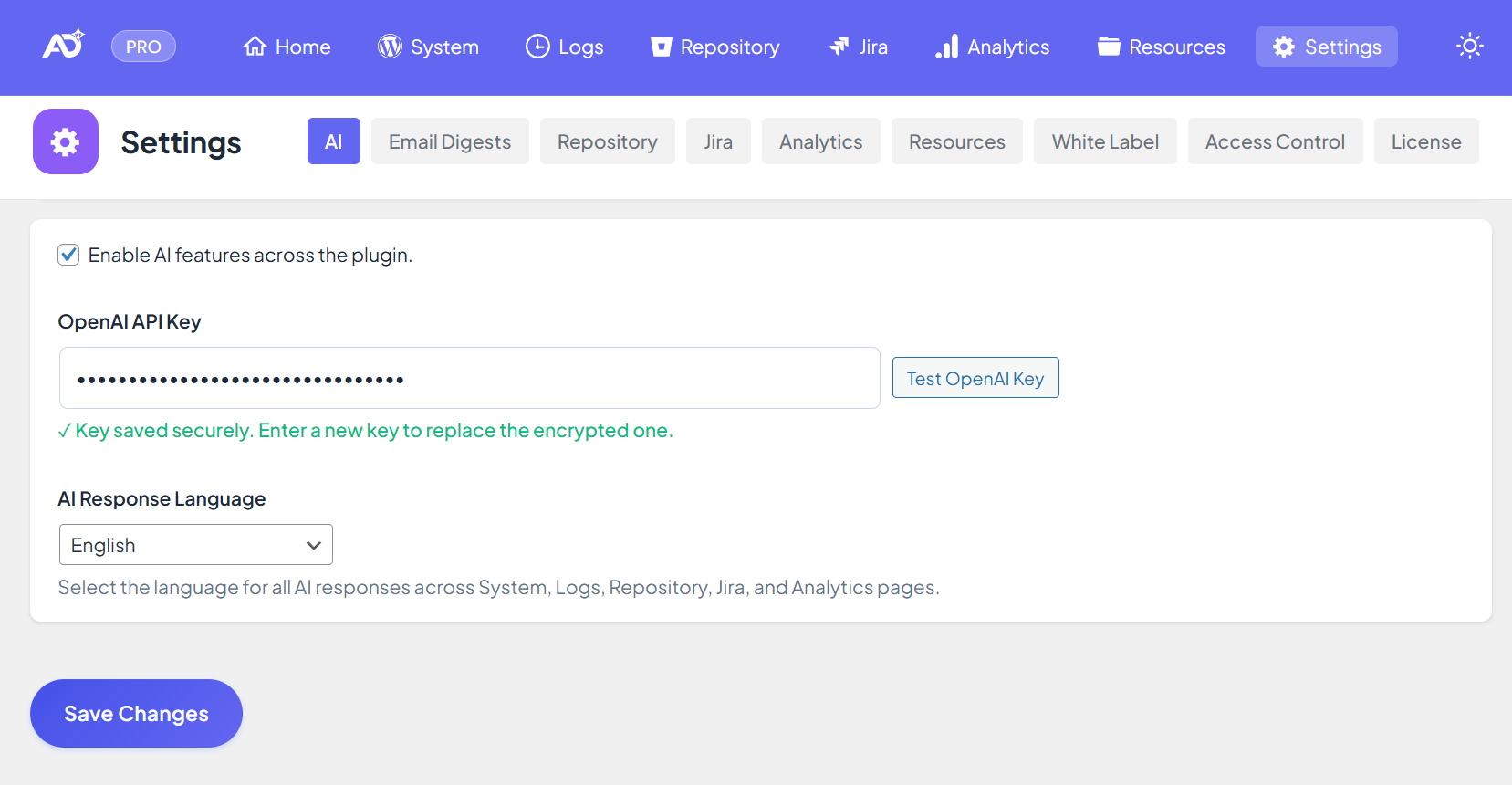
The AI Settings page allows you to enable and configure all AI-powered features of All DashAI WP.
All DashAI WP uses a BYOK / BYOKEY (Bring Your Own OpenAI Key) model for both FREE and PRO plans.
This means you must provide your own OpenAI API key to activate AI summaries, insights, and recommendations across the dashboard.
All DashAI WP never uses a shared or third-party OpenAI key on your behalf.
In all cases, the plugin only uses the OpenAI API key you configure.
How AI Works by Plan (FREE vs PRO)
FREE Plan
AI requests are sent directly from your WordPress server to OpenAI
Uses your own OpenAI API key
Supports streaming directly from OpenAI (when available)
PRO Plan
AI requests still use your own OpenAI API key
Streaming responses are routed first through the All DashAI Cloud proxy (
api.alldashai.com) for optimized deliveryIf the proxy is unavailable, the plugin automatically falls back to direct OpenAI streaming or standard responses
At no point does All DashAI WP replace, mask, or reuse your OpenAI key.
Where AI Is Used
AI is available across the All DashAI WP dashboard, depending on your plan:
System Health
FREE & PRO
Analyze WordPress, PHP, MySQL, and server configuration
Receive AI-powered recommendations for performance, stability, and security
Logs
FREE & PRO
Understand errors, warnings, stack traces, and possible fixes directly from your WordPress logs
Repository (GitHub / Bitbucket)
PRO only
Summarize commits, explain code changes, and highlight key development insights
Jira
PRO only
Summarize issues, clarify requirements, surface risks, and suggest next actions
Analytics
FREE
Access dashboards and core traffic metrics (no AI summaries)
PRO
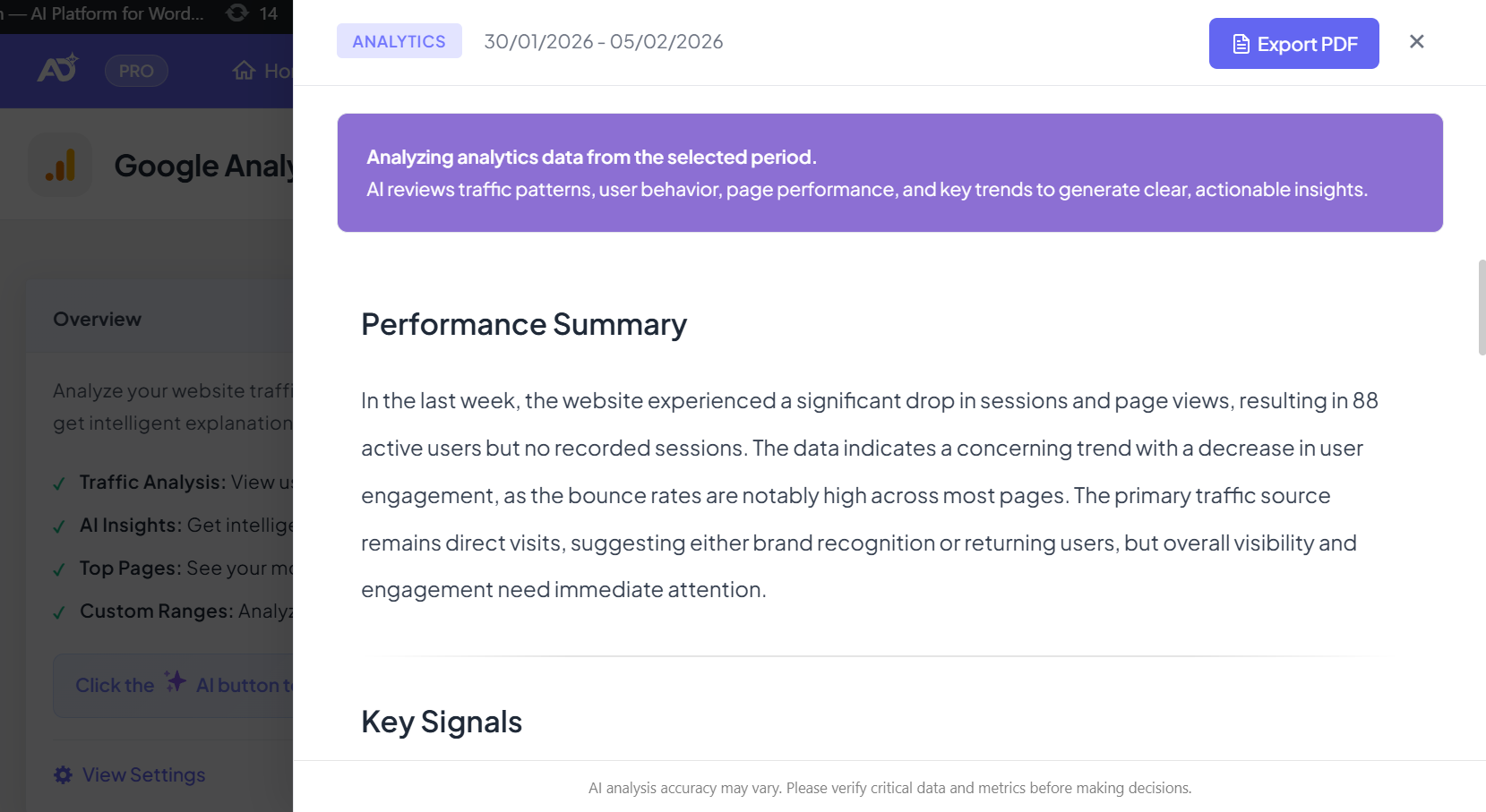
AI-powered traffic summaries
Intelligent explanations of analytics data
Custom date ranges and advanced filters
Once AI is enabled and a valid key is saved, AI features become active globally according to your plan.
Requirements
To use AI features:
Enable the AI checkbox
Enter a valid OpenAI API key
Save the settings
Without a valid API key, all AI features remain disabled, regardless of plan.
Where to Get Your OpenAI API Key
You can generate an API key directly from your OpenAI account:
Visit the OpenAI API Keys page
https://platform.openai.com/api-keysClick Create new secret key
Copy the generated key
Paste it into the OpenAI API Key field in All DashAI WP
Your OpenAI account must have an active billing method to process requests.
Key Storage and Security
Your OpenAI API key is stored:
Locally inside your WordPress installation
Encrypted using AES-256-CBC
Bound to your WordPress salts (
AUTH_KEY,SECURE_AUTH_KEY)
If these salts change, you will be asked to re-enter your key to ensure it cannot be decrypted outside your installation.
Network Behavior by Plan
FREE: Requests go directly from your server to OpenAI
PRO: Streaming requests go through the All DashAI Cloud proxy, with automatic fallback to direct OpenAI
All DashAI WP does not add tracking around your API key and uses it exclusively to communicate with OpenAI on your behalf.
AI Response Language (PRO Only)
PRO users can select the output language for all AI-generated content across:
System
Logs
Repository
Jira
Analytics
Once selected, AI responses automatically adapt to the chosen language.
The FREE version always responds in English.
Streaming Mode (How AI Responses Are Delivered)
All DashAI WP supports AI Streaming, allowing responses to appear progressively as they are generated.
This provides a faster and more natural experience for long explanations and summaries.
Streaming by Plan
FREE: Streaming directly from OpenAI using your BYOKEY
PRO: Streaming via All DashAI Cloud proxy first, with automatic fallback to direct OpenAI
Streaming works only when:
Your hosting environment supports Server-Sent Events (SSE) and long-running HTTP connections
A valid OpenAI API key is configured
If streaming is not available, the plugin automatically falls back to non-streaming mode, displaying the full response once processing is complete.
AI Model and Fallback Behavior
All DashAI WP uses a fixed OpenAI model internally.
There is no model selector in the interface.
If OpenAI returns a model-related error (such as unavailable, deprecated, or overloaded), the plugin automatically switches to an internal fallback model defined in the code.
This process is fully automatic and requires no user action.
End-to-End Workflow
You enable AI and save your OpenAI API key
When you trigger an AI action (System, Logs, Repository, Jira, or Analytics):
Relevant context is collected
A specialized prompt is generated
The request is sent using your OpenAI API key:
FREE: Directly to OpenAI
PRO: Via All DashAI Cloud proxy first, with automatic fallback
The AI response is streamed or returned to your dashboard and rendered in the appropriate interface
Troubleshooting
Invalid API Key
Ensure your OpenAI billing is active
Regenerate your key and update it in All DashAI WP
Streaming Not Working
Your hosting provider may block SSE or long-running connections
Disable streaming or rely on non-streaming mode
Decryption Error
WordPress salts have changed
Re-enter your OpenAI API key to re-encrypt it
PRO Features Not Available
Confirm your site is connected to a valid PRO license
Check the License section inside All DashAI WP