
Documentation
White Label
The White Label module turns All DashAI into a fully branded reporting layer — so every export looks like it came straight from your agency.
No setup required
Local-only
Client-ready
Local-only
Client-ready
Overview
White Label lets you customize the visual identity of All DashAI reports and exports — logo, colors, and branding metadata —
so you can deliver polished documents that match your agency or company.
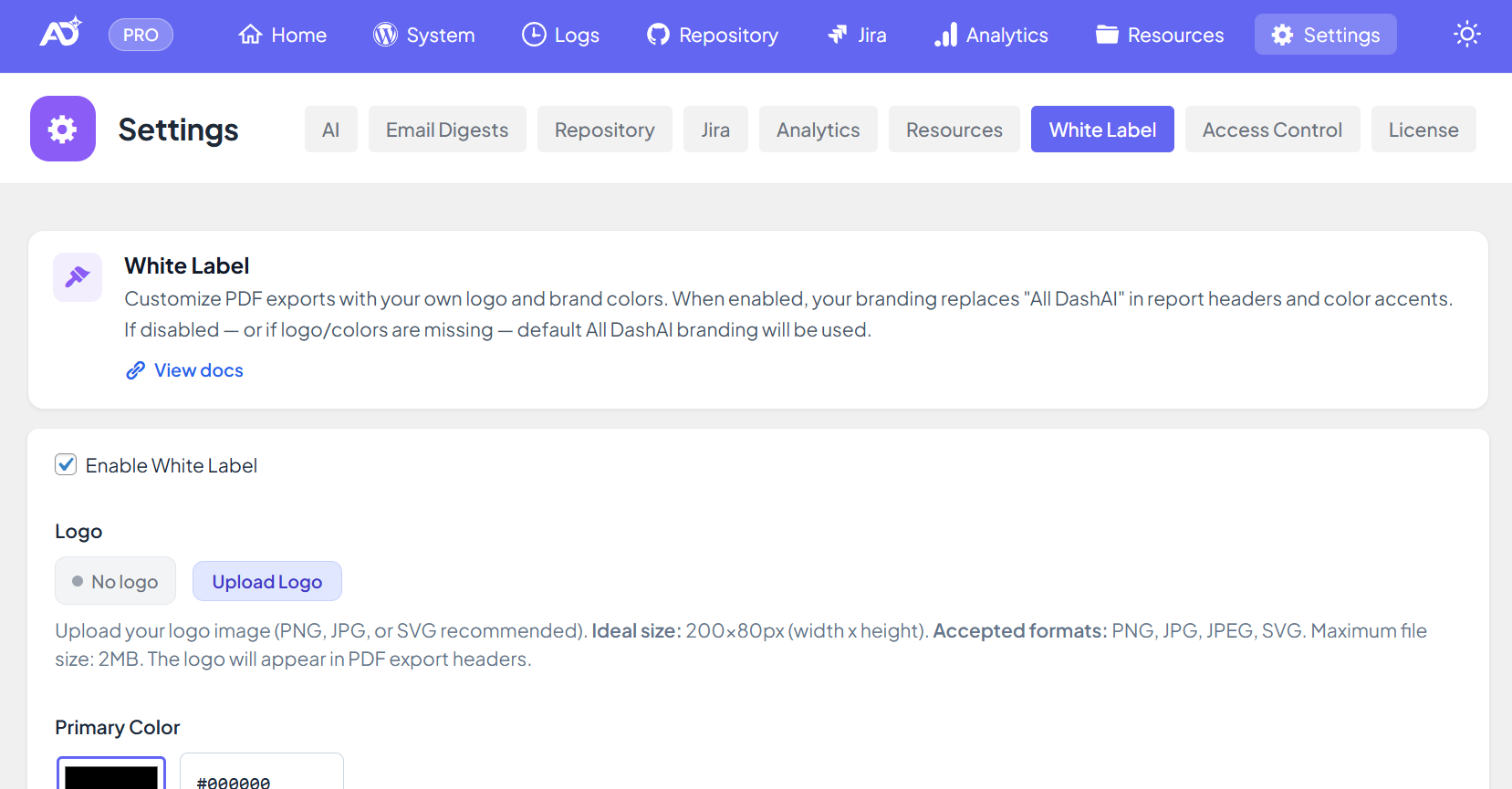
Agency tip: Set White Label once, then reuse the same branding across every client site and every exported report.
How to configure
- Go to All DashAI → Settings → White Label.
- Enable White Label.
- Upload your logo and define your brand colors.
- Add your Company URL (used in footers and report metadata).
- Click Save.
Important: Use high-resolution logos (PNG/SVG) for crisp PDF rendering, especially on retina displays.
PDF Export
All DashAI automatically applies your White Label configuration to every generated document —
making reports ready to send to clients without extra formatting.
- Logo and brand colors applied automatically
- Footer branding (company name / URL, if configured)
- Consistent styling across all exported sections
- Optional AI summaries included (if enabled)
How it works
- Branding settings are stored locally in WordPress
- Export templates inject logo/colors at render time
- Reports reflect the current dashboard snapshot
- No external services required
Security note: White Label only controls visuals and metadata — it does not change site settings or integrations.
Agency benefits
- Higher perceived value: reports look like a premium agency deliverable
- Less manual work: no redesigning docs per client
- Consistency: one standard report experience across your portfolio
- Client confidence: clear, branded communication every time