
Repository
The Repository module connects your WordPress site to GitHub or Bitbucket —
showing recent commits inside wp-admin and enabling AI-powered summaries.
AI-ready (optional)
Overview
Repository connects your WordPress dashboard to your Git provider. It helps you quickly answer:
“What changed recently?” — which is critical when debugging incidents, verifying deploys, or reporting progress to clients.
View recent commits directly inside wp-admin.

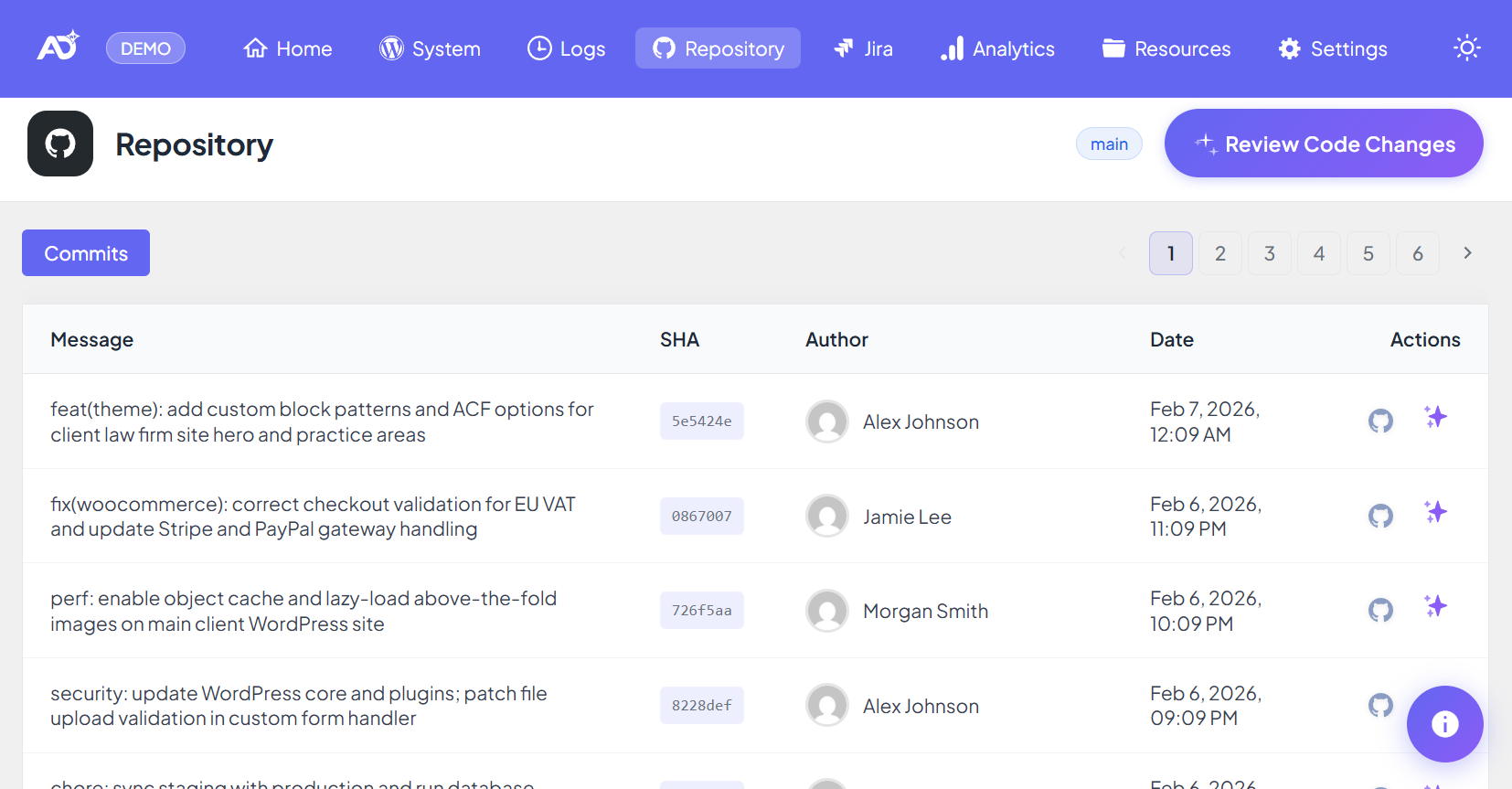
Repository commits panel (replace with your plugin screenshot).
Prerequisites
- An accessible GitHub or Bitbucket repository
- Authentication via OAuth (recommended) or a manual token
- Repository URL and the correct branch name (example:
main)
How to connect
- Go to All DashAI → Settings → Repository.
- Enable Repository Integration.
- Select your provider: GitHub or Bitbucket.
- Choose authentication:
- OAuth: click connect and authorize access.
- Manual token: paste a token generated from your provider.
- Enter your repository details:
- Repository URL (example:
https://github.com/org/repo) - Branch (example:
main)
- Repository URL (example:
- Click Save.
After saving, open All DashAI → Repository to verify commits are loading.
Token setup
If you use manual tokens, generate credentials directly from your Git provider.
GitHub – Manual Token (Personal Access Token – Classic)
For the manual token in the plugin, use:
- Generate new token (classic) (the option under “For general use”).
- Select the scope repo (required to read commits).
- If you use CI/CD (GitHub Actions), also select workflow.
(and workflow if you use CI/CD).
Create it at:
GitHub → Settings → Developer settings → Personal access tokens
Official docs:
GitHub Personal Access Token documentation
Bitbucket – API Token (Scoped)
- Go to Bitbucket Settings → API tokens
docs: Bitbucket API tokens documentation - Click Create API token with scopes (not the simple “Create API token”).
- Choose scopes:
- Required:
read:repository:bitbucket(view repositories and commits) - Optional (CI/CD):
read:pipeline:bitbucket(view pipelines)
- Required:
- Create the token and copy it (it will only be shown once).
- In the plugin, paste it into the Bitbucket API Token field.
- Use your Bitbucket account email address in the username/email field.
- Save settings. New tokens may take up to a minute to become active.
Private repositories in organizations
For private repositories inside a GitHub organization, connection can work in two ways:
Manual token (recommended)
Use a Personal access token (classic) with the repo scope.
It uses your own credentials, so it is not affected by the organization’s OAuth app restrictions.
Create the token at: GitHub → Settings → Developer settings → Personal access tokens.
Then in All DashAI go to: Settings → Repository, choose Manual Token, and paste the token.
OAuth
OAuth only works if your organization allows the app.
If the organization has “OAuth App access restrictions” enabled
and has not approved the app, you will get an authorization error.
In that case, either:
- Ask your organization admin to approve the OAuth app, or
- Use a Manual token as described above.
How it works
Repository fetches commit metadata from your provider and displays it inside the dashboard.
This gives you a fast, consistent view of recent changes without leaving WordPress.
- Commit message and short SHA
- Author and date
- Direct link to the commit in your provider
- Branch-aware commit history
The module is designed for visibility and reporting — it does not modify your repository.
AI summaries
When AI is enabled (All DashAI → Settings → AI), Repository can analyze recent commits and generate
executive-style summaries and post-deploy recommendations.
- Summarize recent changes in plain language
- Highlight risk areas (auth, migrations, config, deploy logic)
- Suggest post-deploy checks and quick validation steps

 AI summary for recent commits.
Best practices
- Use the correct production branch (
main,master, or your release branch). - Prefer OAuth for teams and agencies.
- Use tokens with minimal permissions (read-only where possible).
- Combine Repository + Logs + System for faster root-cause analysis.
Troubleshooting
Commits are not loading
- Confirm the repository URL and branch name are correct.
- Check token permissions or OAuth access.
- Reconnect OAuth if authorization expired.
401 / 403 errors
- Token is invalid, expired, or missing required permissions.
- Repository is private and not accessible by the provided credentials.
- In organization environments, admin approval may be required.
No commits in the panel
- Wrong branch selected (common:
mainvsmaster). - No recent activity on that branch.