Access Control
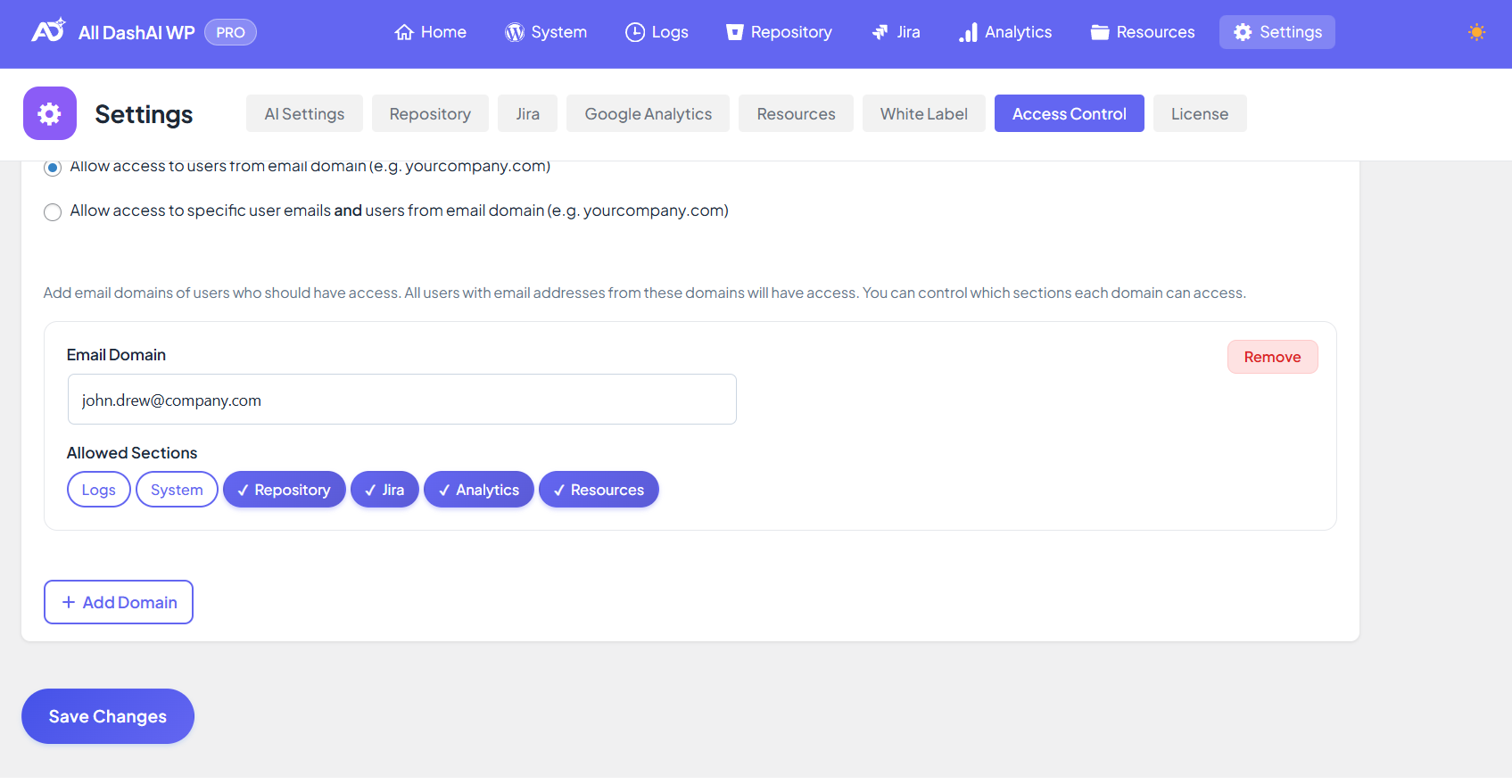
Access Control
Access Control is a granular permission system that allows you to restrict who can access the plugin and which sections each user is allowed to view. Access can be granted based on specific user email addresses, email domains, or a combination of both (PRO).
This ensures that sensitive information—such as logs, system details, commits, analytics or Jira issues—is only visible to authorized users.
Why Use Access Control?
Security – Restrict sensitive data to authorized personnel
Compliance – Align with organizational security policies
Team Management – Give each role access only to what they need
Flexibility – Control access per user, per domain, or both (PRO)
Simplicity – Administrators always retain full access
Requirements
FREE version: Users or Domains (not both)
PRO version: Users and Domains simultaneously
Only administrators can configure Access Control
Administrators always have full access to the plugin
Restriction Methods
The plugin supports four different restriction modes:
Administrators (Default)
Only users with the WordPress capability manage_options (Administrators) can access the plugin.
Use when:
Only site administrators should use the plugin
No section-level restrictions are needed
Users (Specific Email Addresses)
Grants access only to specific users by email.
Use when:
You want precise, individual-level permission management
Team members have different email domains
You need section-level control per user
Behavior:
You add individual email addresses
Each user can have unique section permissions
Email must match the WordPress account email
Example cases: contractors, freelancers, external developers.
Domain (Email Domain Access)
Grants access to all users belonging to specific email domains.
Use when:
A whole company or department should have access
You want easy permission onboarding
Behavior:
Add domains (e.g.,
company.com)All users with matching emails receive access
Each domain has its own section-level permissions
The plugin automatically parses the domain from the user’s email.
Both (Users + Domains) — PRO
Combines the Users and Domain methods.
Use when:
You need full flexibility
You have internal users (domain) and external collaborators (specific emails)
You need granular permissions for each group
Behavior:
Access is granted if:
The user’s email matches an allowed email, OR
The user’s domain is in the allowed domain list
Section permissions are checked separately for each user/domain.
This is ideal for agencies managing internal teams and external contractors.
Controllable Sections
Each user or domain can be granted access to specific plugin sections:
| Section | ID | Description |
|---|---|---|
| Logs | logs | WordPress logs page |
| System | system | System information and status |
| Repository | repo | GitHub / Bitbucket integration |
| Jira | jira | Jira issue tracking |
| Analytics | analytics | Google Analytics 4 insights |
| Resources | resources | Link, assets and documentation hub |
Important:
The Settings page is always restricted to administrators.
Access Control rules do not override WordPress admin privileges.
How to Configure Access Control
Step 1 — Open the Access Control Page
Go to:
All DashAI WP → Settings → Access Control
Only administrators can view or edit this page.
Step 2 — Enable Access Restriction
Check Enable Access Restriction to activate the system.
When disabled:
Only administrators have access
No email or domain rules are applied
Step 3 — Choose a Restriction Method
Option A — Administrators
No further configuration required.
Option B — Users (Specific Emails)
Select Allow access to specific user emails
Click Add User Email
Enter the email and assign section permissions
Repeat for each user
Add Current User fills in your own email automatically.
Option C — Domain (Email Domains)
Select Allow access to users from email domain
Click Add Domain
Enter the domain (e.g.,
company.com)Assign section permissions
Repeat for each domain
Add Current Domain automatically detects your own domain.
Option D — Both (Users + Domains) — PRO
Select Allow access to specific emails AND users from domain
Both configuration panels become available
Add individual users and domains
Configure unique permissions for each
Access is granted if either the user email OR the domain matches.
Section-Level Permissions
For each user or domain, you can enable:
Logs
System
Repository
Jira
Analytics
Resources
Users see only the sections they have permission to access.
If no permissions are selected, the user/domain cannot access the plugin.
How Access Control Works
1. General Access Check
The plugin determines if the user is allowed to use the plugin at all:
Access Control disabled → Allowed
Administrators → Always allowed
Method: Users → Email must match
Method: Domain → Domain must match
Method: Both → Email OR domain must match
2. Section Access Check
For each page:
Administrators → Always allowed
Users → Must have permission for that section
Domain → Domain must have permission
Both → Either must have permission
Interface Behavior
Menu Visibility
Sections the user cannot access are hidden from the menu.
Page Access
If accessing a restricted section via URL:
The user sees an Access Denied message
AJAX requests are also blocked
Settings Page
Always restricted to administrators regardless of Access Control rules.
Examples
Example 1 — Small Development Team
Method: Users
dev1@company.com → Logs, System, Repository
dev2@company.com → Jira, Analytics
dev3@company.com → Full access
Example 2 — Organization-Level Access
Method: Domain
company.com → Full access
All employees automatically gain access without manual configuration
Example 3 — Mixed Team (Internal + External)
Method: Both (PRO)
Users:
contractor@external.com → Repository only
Domains:
company.com → Full access
Troubleshooting
User Cannot Access the Plugin
Email mismatch
No permissions assigned
Not included in user/domain list
Access Control enabled but incorrectly configured
Domain Access Not Working
Domain added incorrectly
Incorrect email format
Permissions not assigned
Section Missing from the Menu
User/domain lacks permission
Section disabled in plugin settings
Access Control blocking access
Cannot Remove Your Own Access
The plugin prevents administrators from locking themselves out.
Best Practices
For Security
Review your access list regularly
Use domain-based access for internal teams
Use user-based access for contractors
Keep at least one fallback administrator
For Organization
Assign permissions based on roles
Document who has access to what
Remove access for former team members
For Maintenance
Use PRO “Both” for hybrid access setups
Periodically verify user emails and domains
Test permissions after configuration changes
Limitations
FREE version: Users OR Domains only
PRO version: Users AND Domains
No role-based access (WordPress roles are not used)
Does not modify access to WordPress capabilities
Settings page always restricted to administrators
FAQ
Do administrators bypass Access Control?
Yes, always.
Does Access Control hide menu items?
Yes, inaccessible sections are hidden.
Does it work with multisite?
Yes. Each site has separate Access Control settings.
Can I give access to only one section?
Yes, permissions are section-based.
What happens if I enter an invalid domain?
The system sanitizes and validates entries; invalid domains are ignored