
White Label
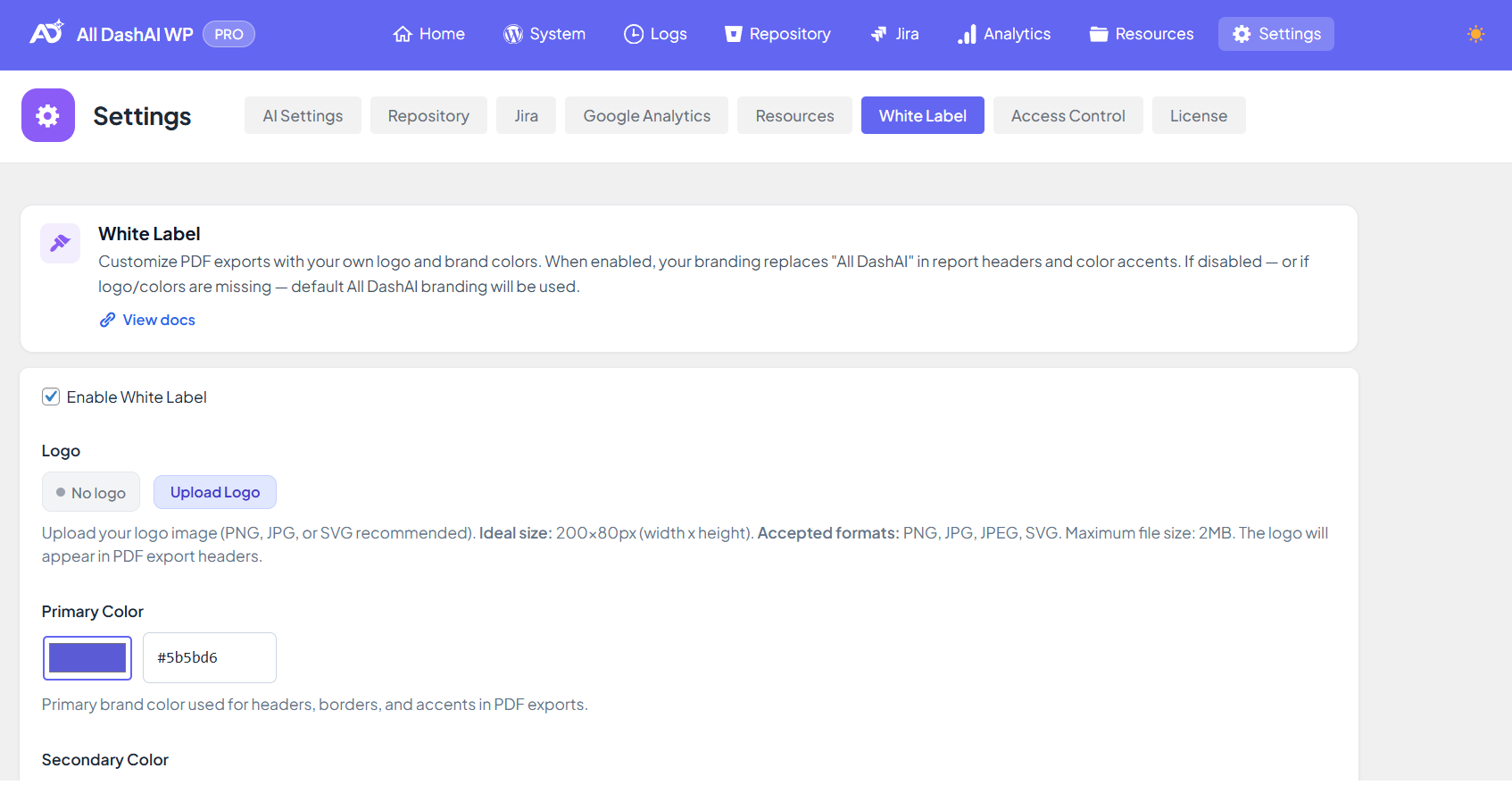
White Label
White Label is a PRO feature that allows you to fully customize all exported PDF reports with your own branding. When enabled, your logo, brand colors and company URL replace the default All DashAI WP branding.
This feature is especially useful for agencies, freelancers or development teams who want to deliver professional PDF reports using their own visual identity.
White Label applies automatically to all PDF exports across the plugin.
Where White Label Is Applied
White Label branding appears in all exported PDF reports, including:
System Report
Logs Report
Repository Report
Jira Report
Google Analytics Report
Each PDF uses your custom logo, colors and footer URL.
Requirements
PRO license required
White Label section access (controlled by Access Control if enabled)
User must be an Administrator or have explicit permission for the White Label section
FREE users see the fields but they remain disabled.
Features Included
White Label includes the following customization options:
Replace the All DashAI WP logo with your own logo
Apply your brand’s primary and secondary colors in all PDFs
Replace footer URL with your company website
Generate fully branded, professional reports for clients
Independent configuration per site in multisite installations
How to Configure White Label
Step 1 — Enable White Label
Go to: All DashAI WP → Settings → White Label
Enable the option Enable White Label.
When disabled, all reports use the default All DashAI WP branding.
Step 2 — Upload Your Logo
You can upload your own logo via the Upload Logo button.
Supported formats:
PNG, JPG, JPEG, SVG
Recommended size: 200 × 80 px
Maximum size: 2MB
If a logo is not provided, the system falls back to the default All DashAI WP logo.
Removing the logo immediately restores the default branding.
Step 3 — Set Brand Colors
White Label supports two custom colors:
Primary Color
Used in:
Header elements
Section accents
PDF highlights
Default: #5b5bd6
Secondary Color
Used in:
Secondary highlights
Complementary graphic accents
Default: #2684ff
Both require a valid hex color format (#RRGGBB).
If colors are not provided or invalid, the plugin uses default colors.
Step 4 — Set Company Website URL
This URL appears in the footer of every exported PDF.
Requirements:
Must start with
http://orhttps://If empty, footer shows alldashai.com
Example:
https://myagency.com
Step 5 — Save Settings
Click Save Changes at the bottom of the page.
The next PDF export will instantly use the new branding.
Behavior and Fallback Logic
White Label uses a structured fallback system:
Case 1 — White Label enabled + valid logo/colors provided
Your branding replaces all plugin branding.
Case 2 — White Label enabled but logo/colors missing
System uses default All DashAI WP branding.
Case 3 — White Label disabled
All reports always use All DashAI WP branding.
This ensures that reports always remain visually consistent and functional.
How White Label Is Applied in PDF Reports
Header
Shows your custom logo, or the default logo if none provided.
Colors
Primary and secondary colors appear in titles, borders, labels and design highlights.
Footer
Footer displays your company URL or the default plugin URL.
Input Validation & Security
All URLs are sanitized
Logo uploads follow WordPress security rules
Colors are validated to ensure proper hex formatting
Nonces protect the save actions
PRO restriction prevents unauthorized access
Multisite Behavior
Each site manages its own White Label configuration
No shared branding between sites
No network-level White Label override
This allows agencies managing multiple client sites to apply unique branding per installation.
Troubleshooting
Logo not showing
Check if White Label is enabled
Verify that the logo URL is reachable
Ensure the file format is supported
Try re-uploading the image
Colors not applied
Verify color format (#RRGGBB)
Ensure White Label is enabled
Clear any caching layers
Footer showing wrong URL
Check if the Company URL field is empty
Verify you saved changes
White Label options are disabled
You are on the FREE version
Or Access Control is blocking access