
Analytics
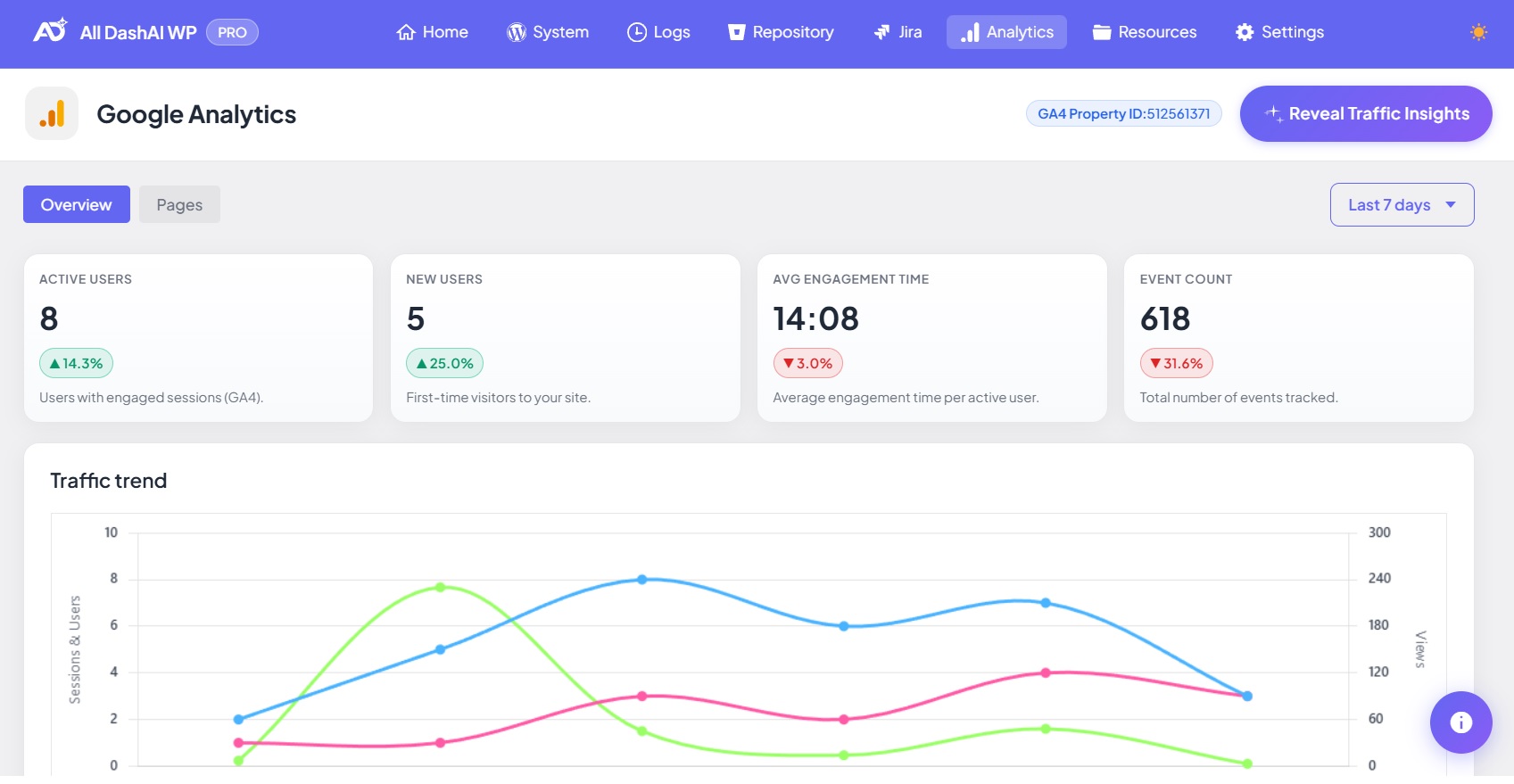
Google Analytics (PRO Feature)
Accessing the Analytics Page
Authentication
- OAuth provides secure, automatic token refresh
- Tokens are stored securely and refreshed without user interaction
- The analytics.readonly scope is used to access analytics data
- Go to Settings → All DashAI Settings → Analytics
- Click Connect with Google Analytics
- Authorize access to your Google Analytics account
- Enter your GA4 Property ID (format: 123456789)
Data Available
- KPI Cards: Active Users, New Users, Average Engagement Time, Event Count (with delta comparison)
- Trend Chart: Sessions, Users, and Page Views over time
- Traffic Sources: Channels by sessions
- User Sources: First user source by active users
- New vs Returning Users: Daily breakdown
- Top Countries: Sessions by country (with interactive map)
- WordPress Pages List: All published pages and posts
- Page Metrics: Views, Users, Engaged Sessions, Engagement Rate, Bounce Rate, Average Session Duration
- Search and Filter: Search by title, filter by post type
- Pagination: 10 pages per page
Features
| Feature | Description |
|---|---|
| Custom Date Ranges | Select any period: 7, 14, 30, 60, 90 days, week/month to date, or custom calendar selection |
| AI Traffic Insights | “Reveal Traffic Insights” button generates AI-powered summary with patterns, recommendations, and risk signals |
| AI SEO Analysis | Per-page SEO analysis with title, meta, heading structure, and content recommendations |
| AI Page Insights | Per-page performance analysis with engagement metrics and optimization suggestions |
| PDF Export | Export analytics reports as PDF with white label branding |
Caching
| Data Type | Cache Duration |
|---|---|
| All Analytics Data | 30 minutes |
- Go to Settings → All DashAI Settings → Analytics
- Click the Clear Cache link
- Return to the Analytics page to fetch fresh data
Error Handling
- OAuth Not Connected: Prompts to connect Google Analytics via OAuth
- Property ID Not Configured: Prompts to enter GA4 Property ID
- Authentication Errors: Suggests reconnecting OAuth
- Permission Errors: Indicates access restrictions on the GA4 property
- Rate Limits: Google Analytics API limits (50,000 requests/day)
Security and Privacy
- OAuth tokens stored securely with automatic refresh
- All AJAX requests protected with WordPress nonces
- Capability checks enforced
- AI features process only the data visible on screen
- No analytics data is stored permanently; it is fetched on demand and cached temporarily
Multisite Behavior
- Each site has its own OAuth connection and Property ID
- Cache is isolated per site
- Settings are site-specific