Resources
The Project Resources module centralizes links, environments and key contacts into a single operational hub — reducing friction, improving onboarding and keeping project context inside wp-admin.
No external tools
Operations focused
Overview
Project Resources turns WordPress into a structured operational hub. Instead of hunting for staging URLs,
Jira boards, design assets or client contacts across tools, everything lives inside All DashAI.
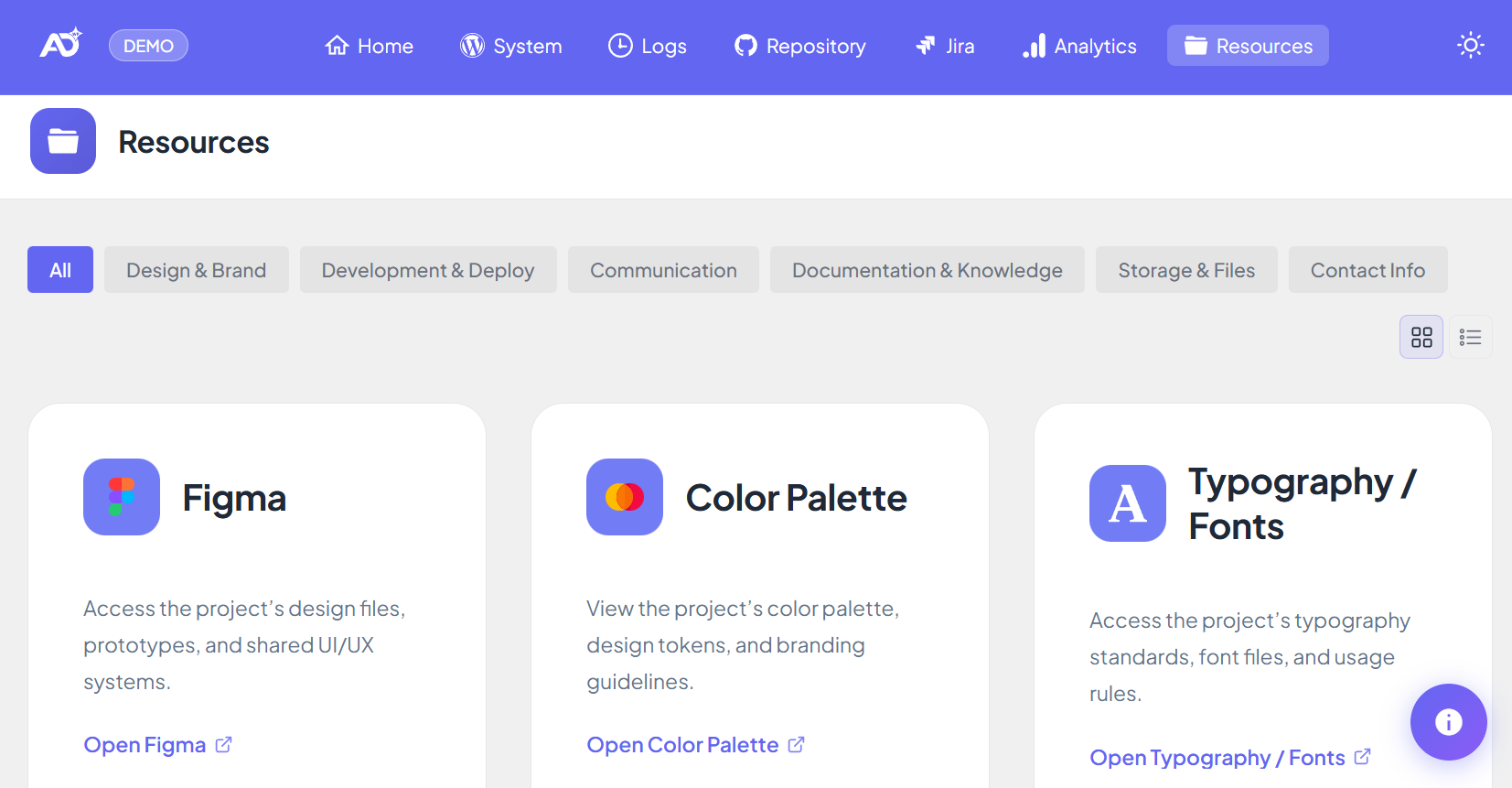
What you get
- Single source of truth for project links and context
- Organized categories for fast navigation
- Quick access to environments
- Centralized project contacts
What the Project Resources page does
1) Centralizes operational context
Resources keeps critical project links available inside the same dashboard where you already check
Logs, System and Repository.
2) Standardizes structure across projects
Agencies can reuse the same operational template across all clients — improving onboarding and handovers.
What to store (recommended)
- Documentation: briefs, scopes, playbooks
- Design: Figma and asset libraries
- Development: APIs, repositories
- Communication: official channels
- Environments: Production, Staging, Dev
- Contacts: stakeholders and owners
Important
Do not store passwords or API keys. Resources is designed for links and operational context only.
How to set up Project Resources
- Open All DashAI → Resources.
- Add links, environments and contacts by category.
- Click Save.
How Project Resources works
Resources are stored locally as structured WordPress settings. This keeps the feature fast,
reliable and independent of third-party services.
Security model
- No credential storage
- Client-safe sharing supported
- Local-only data
Access Control
With Access Control enabled, you can share Resources with clients while restricting diagnostics
and integrations to your internal team.
Why this matters for agencies
- Faster onboarding
- Less operational friction
- Cleaner project handovers
- Better client transparency